
Managing users, groups, and aliases across multiple systems is one of the most time-consuming parts of email security. Earlier this year we introduced Microsoft 365 Directory Sync. Today we’re pleased to bring the same capability to Google: Google Workspace Directory Sync for MXGuardian.
With this new feature, you can add a domain directly from Google Workspace and keep it automatically synchronized — no CSVs, no manual cleanup, and no drift over time.
What Google Workspace Directory Sync Does
When you connect a domain from Google Workspace to MXGuardian:
- All users, groups, and aliases are synchronized automatically
- Changes made in Google Workspace stay in sync with MXGuardian
- Deleted users are removed automatically
- Aliases and group memberships are detected correctly
- You are not charged for groups or aliases — only actual users
The result: accurate protection, accurate billing, and far less administrative overhead.
How to Add a Domain from Google Workspace
Adding a domain takes just a few clicks.
- From the Domains page, click the down arrow next to Add Domain
- Select Import from Google Workspace
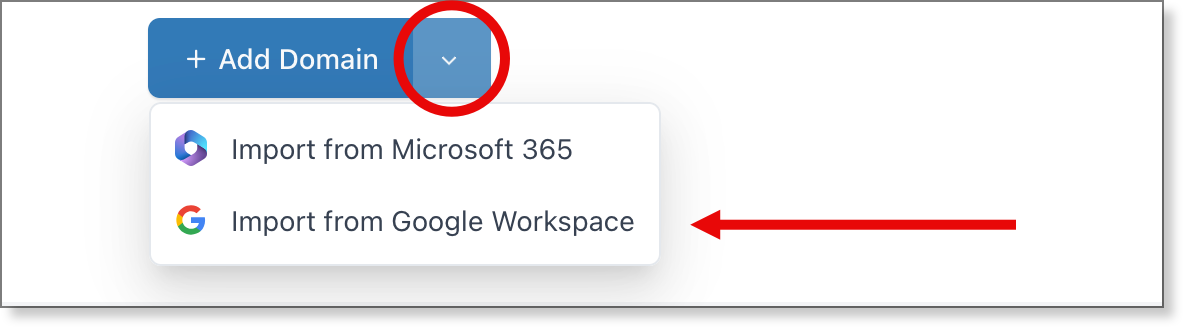
- Sign in as a Google Workspace administrator and accept the requested permissions
- You’ll see a list of verified domains in your Google Workspace account
- Select the domain you want to add and click Add Selected Domain
That’s it. The domain is added to MXGuardian and immediately synchronized.
What Gets Synchronized
Once connected, MXGuardian will automatically sync:
- Mailbox users
- Google Groups used as mail-routable addresses
- Email aliases (including multiple aliases per user or group)
Synchronization is continuous. When you add, remove, or modify users or aliases in Google Workspace, those changes are automatically reflected in MXGuardian.
Important Notes About Sync Behavior
- One-way sync only
MXGuardian reads data from Google Workspace but never makes changes back. You grant read-only access to your directory. - Directory data only — never your mail
MXGuardian requests permission to read only your directory: names, email addresses, groups, and group memberships. We do not request, and cannot obtain, permission to read the contents of any mailbox in your Google Workspace account. - User management moves to Google Workspace
Once a domain is synced, users can no longer be added or removed directly in MXGuardian. All user management happens in Google Workspace. - No extra charges for groups or aliases
Only actual mailbox users count toward billing.
Important Setup Steps (Mail Flow)
Google Workspace Directory Sync handles identity synchronization, but mail flow changes still need to be completed manually.
You will still need to:
- Configure inbound gateway settings in the Google Workspace Admin console
- Update your domain’s MX records to point to MXGuardian
These steps ensure that mail flows through MXGuardian before reaching Google Workspace.
For detailed, step-by-step instructions, please refer to our guide:
Best Practices for Google Workspace
Disconnecting a Domain
You can stop synchronization at any time.
- Go to the Domain Settings page
- Click Stop Sync
The domain will remain in MXGuardian, but it will no longer be synchronized with Google Workspace. From that point on, you can manage users manually again if needed.
You can also disconnect your entire Google Workspace account from the Security page, which stops synchronization for every connected domain and removes the stored credential.
Already Have the Domain in MXGuardian?
No problem.
If a domain already exists in MXGuardian, you do not need to delete it first. When you add it using Add Domain from Google Workspace, the domain will be seamlessly converted into a synchronized domain.
Pricing and Availability
- Professional plan: Included at no additional cost
- Standard plan: Upgrade to Professional to enable Google Workspace sync
Why We Built This
This feature was designed to remove one of the biggest sources of friction in email security: keeping identity data in sync.
By letting Google Workspace remain the source of truth, MXGuardian can focus on what it does best — protecting your email — while reducing administrative work and eliminating errors caused by stale data.
Together with Microsoft 365 Directory Sync, this means both major cloud email platforms are now fully supported.
If you’d like help enabling Google Workspace Directory Sync or have questions about how it works in your environment, feel free to reach out. We’re happy to help you get started.